Key takeaways
- Video outteaches text and slides because narration and animated visuals split the work of learning across two channels (dual coding).
- A lesson sticks on structure, not polish: one idea per scene, visuals that are the explanation, pacing that breathes, and a recall prompt.
- The fastest no-camera route is an AI illustrated-video tool that follows your script word-for-word, so accuracy stays intact.
Teaching well on video comes down to a tight script and visuals that match each concept, and AI illustrated video gets you there the same day without a camera or editor.
You know your subject cold. You can explain it to one student in five minutes flat. The hard part is turning that explanation into a video hundreds of people can watch and learn from, without a weekend behind a camera or editing software you'll never open again.
This guide covers how to make educational videos the practical way. Why video beats text and slides for learning. What makes a lesson stick. How to write a teaching script that stays accurate. The production routes you can pick from, and a step-by-step path from lesson notes to a finished illustrated explainer. No camera, no editor, no animation background.
Why video beats text and slides for learning
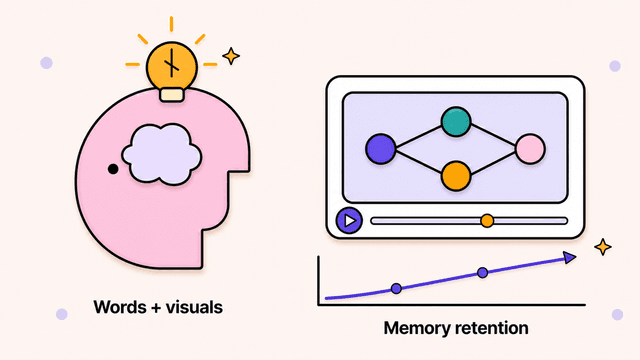
Video beats text and slides because it splits the work of learning between two channels at once. The narration carries the explanation while the visuals carry the picture, so the learner isn't building the mental image alone. This is dual coding theory: people remember more when an idea arrives through words and images together than through either one alone.
A wall of text asks the reader to do everything. They decode the words, picture the concept, and hold it in memory all at the same time. Most give up.
Slides sit in an awkward middle. They beat text, but a static deck with a voice reading over it gives the eyes nothing to follow. Attention drifts to the first bullet and waits. A good educational video keeps the visual moving in step with the words, so there's always a reason to keep watching. A diagram that animates as the voice describes it lands harder than the same diagram sitting still.
There's a practical payoff too. A video scales. Record a lesson once and it teaches the same way at 2am as it does in a live class, for the hundredth student as well as the first.
What makes an educational video actually stick
What makes an educational video stick is structure, not polish. A clean video that's badly organized teaches nothing. Four things separate the lessons people finish and remember from the ones they close halfway through.
- Clear structure. Tell the learner where they're going, teach the thing, then recap it. Break the lesson into one idea per scene. When a scene tries to make two points, it usually makes neither.
- Visuals that match the concept. If you're explaining how a loop works, show the loop running, not a stock photo of someone at a keyboard. The visual should be the explanation. This is where most lessons quietly fail.
- Pacing that breathes. New or hard ideas need a beat of silence after them. Rushing through a concept to save thirty seconds costs you the comprehension you were trying to build.
- Retrieval, not just delivery. Learning sticks when the brain has to pull the idea back out. Pose a question before you answer it. End a section by asking the viewer to recall what they just saw. A short prompt to pause and think beats another minute of explanation.
The visuals point is worth a second look. Stock footage feels like stock footage, and learners can tell when the picture has nothing to do with the words. Generic clips pull attention away from the lesson. Custom illustrations built for your exact explanation keep the eyes and the ears pointed at the same idea.
How to write a teaching script
To write a teaching script, draft it before you touch any visuals and follow a four-beat shape: set the goal, teach one idea at a time, show then name, and recap with a check. The video is only as good as the script underneath it, and a teaching script has a different shape than a marketing one.
1. Set the goal. Open with what the learner will be able to do by the end. State the objective in plain words: "By the end of this, you'll know how compound interest grows your savings." This gives the brain a frame to hang everything on, and it doubles as the spine of your lesson plan.
2. Teach one idea at a time. Each scene introduces a single concept and finishes it before moving on. Keep sentences short and plain. Read it out loud. If you stumble, the learner will too.
3. Show, then name. Introduce the example or picture first, then attach the term. People grasp a concept they've seen before they grasp the label for it.
4. Recap and check. Close by restating the key points and prompting recall. "So: principal earns interest, and that interest earns interest too. What happens to your money if you leave it for ten years instead of five?"
One thing matters more for teaching than for any other kind of video: accuracy. A marketing video can riff. A lesson cannot. If your script says the boiling point of water is 100°C at sea level, the video had better say exactly that, not an AI's loose paraphrase. When you pick a production tool, check whether it sticks to your words or rewrites them. Word-for-word fidelity isn't a nice-to-have in teaching. It's the difference between correct and wrong.
Production options, compared
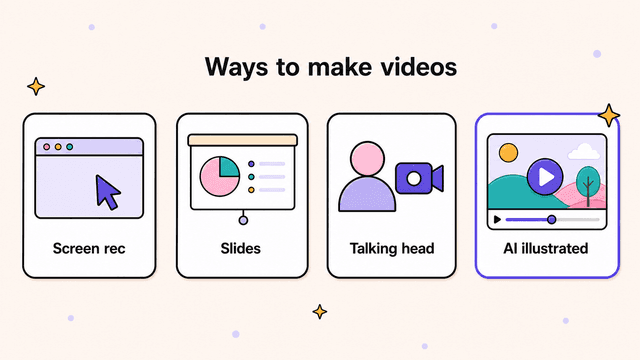
There are four common ways to make educational videos, and they trade off effort, cost, and how much the visuals carry the lesson. The table below sums them up, with detail underneath.
| Method | Effort | Best for |
|---|---|---|
| Screen recording | Low | Software tutorials where the screen is the subject |
| Slides plus voice | Low | Internal training where engagement matters less |
| Talking head | High | Building a personal connection on camera |
| AI illustrated video | Low | Abstract concepts where the picture does the teaching |
Screen recording. Best for software tutorials and walkthroughs where the screen is the subject. Cheap and fast. Useless for abstract concepts that have no screen to show.
Slides plus voice. Low effort, low cost, low engagement. Fine for internal training nobody chose to watch. The static visuals do little work, so comprehension leans entirely on your narration.
Talking head. A camera pointed at you. It builds a personal connection, but it means filming, lighting, retakes, and editing. The talking head itself doesn't illustrate anything, so you're still cutting to slides or graphics for the actual teaching.
AI illustrated video. You write the script, and the tool generates custom illustrations for each scene, adds voice-over, and assembles the finished video. No camera, no editing, and the visuals are built to match each concept instead of pulled from a stock library. It's the same workflow you'd use to make an explainer video, pointed at teaching instead of marketing. This is the fastest route to a lesson where the picture does the teaching.
If your lesson lives in abstract ideas rather than on a screen, and you don't want to be on camera, the illustrated route usually gets you a finished video the same day. It's also how you make animated videos without animation skills: the tool draws every scene, so you never open a timeline.
Try Skiddee free → Skiddee turns each script into a finished narrated video in minutes. Free to try, no credit card.
Turn lesson notes into an illustrated explainer
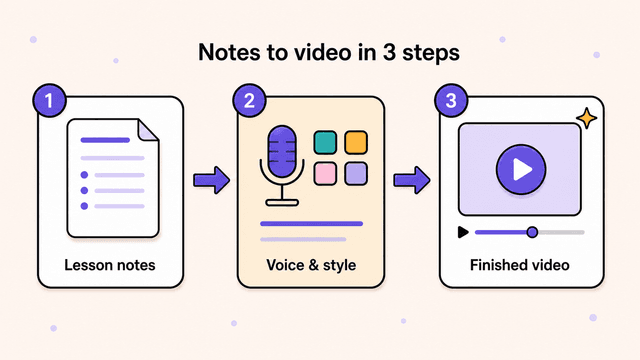
To turn lesson notes into an illustrated explainer, write a teaching script, paste it into an AI illustrated-video maker, pick a voice and visual style, and generate the finished video in one click. Here's the full path using Skiddee, an AI illustrated-video maker.
-
Turn your notes into a script. Use the four-beat teaching shape above: goal, one idea per scene, show-then-name, recap and check. Aim for plain spoken sentences. Sixty seconds of script is roughly 150 words.
-
Paste the script in. Drop the whole thing into Skiddee. It breaks the script into scenes for you and keeps your wording intact, so the lesson stays accurate to what you wrote.
-
Pick a voice and a visual style. Choose an AI voiceover for your video that fits the subject, then a visual style that suits your audience, whether that's a friendly hand-drawn look for younger learners or something cleaner for professional training. You can turn on captions for accessibility and for learners who watch on mute.
-
Generate. Skiddee creates a custom illustration for every scene, never stock footage, records the voice-over, adds transitions, and assembles the full video in one click. You get a finished cut on the first try, not a pile of clips to edit together.
-
Review for accuracy and publish. Watch it through once. Because Skiddee sticks to your script word-for-word, the check is fast: you're confirming the visuals match, not hunting for paraphrased mistakes. Then download it and upload it wherever your course or channel lives, whether that's an LMS, a YouTube playlist, or a Notion doc.
That's the whole process. Most short lessons go from notes to finished video in minutes, and it runs as little as ~$1.20 per minute of video on a monthly plan. You can start free with 1,500 credits, about 3–4 minutes of video, and credits never expire.
Try Skiddee free
Your first 1,500 credits, about 3–4 minutes of video, are on us. Paste a lesson, pick a voice and style, and get a finished illustrated explainer in minutes.
FAQ
How long should an educational video be?
Shorter than you think. For a single concept, aim for two to six minutes. Once a lesson runs past ten minutes, attention drops sharply, so split a long topic into a series of focused videos rather than one marathon. Each video should teach one thing well.
Do I need to be on camera to make educational videos?
No. Plenty of effective lessons never show a face. Screen recordings, slide-and-voice videos, and AI illustrated videos all teach without you appearing on camera. An animated illustration that matches the concept often teaches an abstract idea better than a talking head does.
How do I keep an AI video accurate for teaching?
Pick a tool that follows your script word-for-word instead of rewriting it. Some AI video tools paraphrase your input, which is risky for facts, dates, and formulas. Skiddee narrates exactly what you wrote, so the only accuracy check you need is confirming the visuals fit.
What's the cheapest way to make educational videos at scale?
If you're producing a lot of lessons, hiring editors or buying stock footage adds up fast. An AI illustrated-video tool with usage-based pricing is usually the cheapest route. With Skiddee it runs as little as ~$1.20 per minute of video on a monthly plan, with credits that don't expire, so you only pay for what you make.
Teach your first lesson
Got a lesson sitting in your notes right now? Paste it into Skiddee and see the first illustrated version in minutes. Teaching it well shouldn't take longer than knowing it well.
About the author
Suyin Kee is Co-founder of Skiddee, an AI tool that turns scripts into illustrated animated videos. She writes about faceless video, creator economics, and AI tooling for educators.